How to Use Marketing Intelligence [Guide]
How to Use Marketing Intelligence
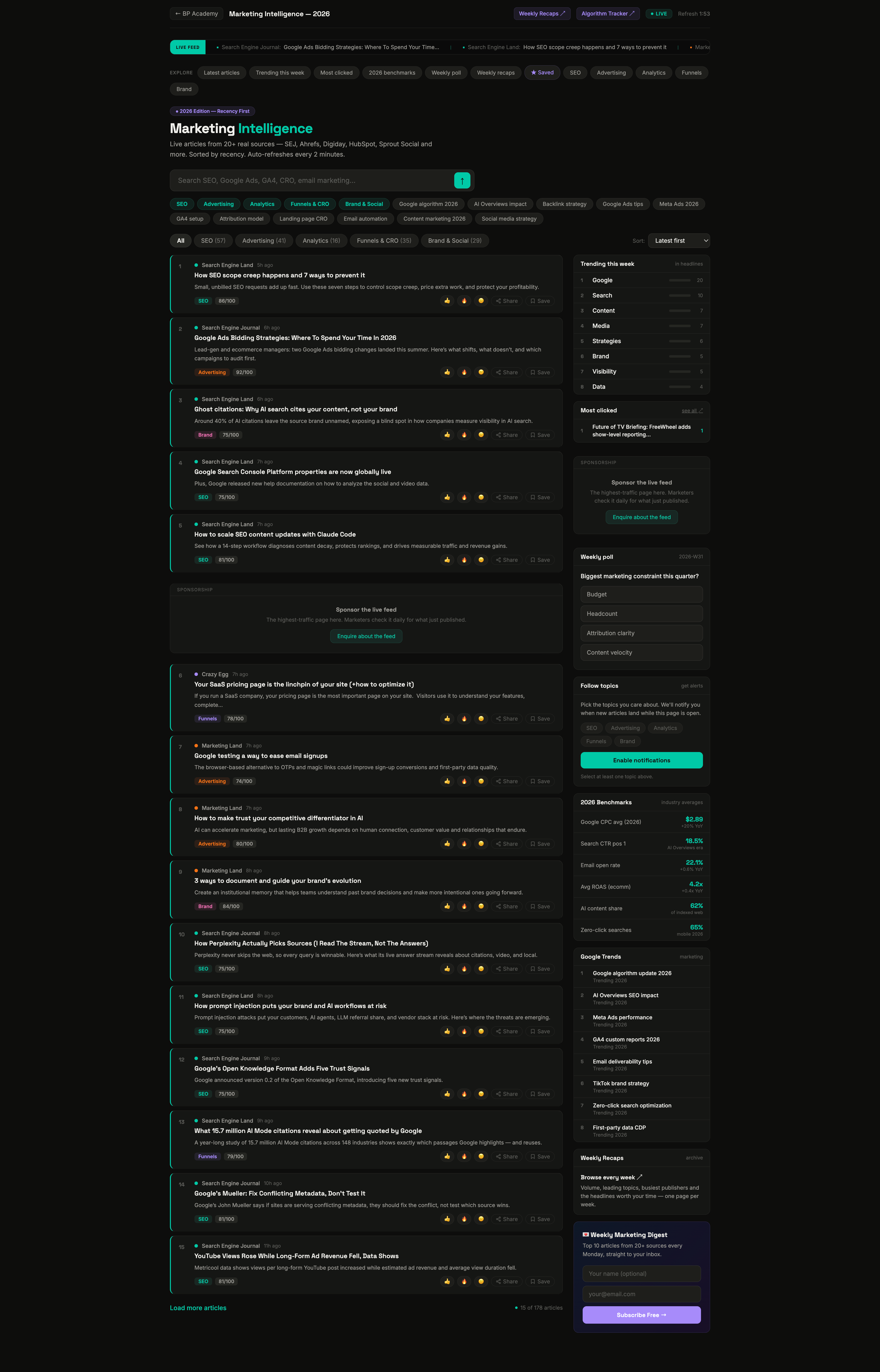
Marketing Intelligence is a live newsroom for marketers. Instead of opening ten different blogs every morning, it pulls the latest articles from 20+ real publications – Search Engine Journal, Ahrefs, Digiday, HubSpot, Sprout Social and more – into one feed, sorts them so the freshest and most important stories rise to the top, and refreshes itself every two minutes. This guide explains every part of the page and how to get the most out of it.
Who it’s for and why it exists
If your job touches SEO, ads, analytics, email, content or social, the hard part isn’t finding marketing news – it’s keeping up without drowning in tabs. Marketing Intelligence solves that by doing the collecting and ranking for you. The goal is that a 60-second scan each morning tells you everything that moved in marketing since yesterday. Everything on the page is built around that: recency first, importance second, and quick actions so you can react, save or share without leaving.
The live ticker at the top
Across the very top is a scrolling “LIVE FEED” ticker. It cycles through the newest headlines and any trending topics, colour-coded by category. It’s there for a quick pulse-check – you can glance at it without scrolling the main feed. Hover over it to pause the scroll if something catches your eye.
1. Reading the feed
The main column is the feed itself. Each row is one article, and the card is designed so you can judge a story at a glance. Left to right, top to bottom, it shows:
- Source – the publication it came from, with a small coloured dot matching its category.
- Age – how long ago it was published, like “2h” or “1d”. This is the single most important signal in the tool; fresher is ranked higher.
- Title and a one- or two-line summary so you know what the piece is about before clicking.
- A category tag – SEO, Advertising, Analytics, Funnels or Brand.
- A priority score out of 100 (explained below).
- If people have been opening it, a small click count.
A subtle coloured edge on the left of a card means it’s fresh (published very recently). Articles that arrived since your last visit get a “NEW” badge so they’re easy to spot.
Click anywhere on a card to open the full article on the original publisher’s site in a new tab – your place in the feed is kept.

2. Understanding the priority score
Every article gets a score from 0 to 100. It’s a blend of three things: how recent the article is, how significant the topic is (a confirmed Google update scores higher than a small tip), and the source. The score is what powers the “Priority” sort. You don’t need to study it – just know that a high score means “this is likely worth your time today,” and it’s the fastest way to separate must-reads from nice-to-reads.
3. The five categories, explained
Knowing what each category covers makes filtering far more useful:
- SEO – search rankings, Google algorithm updates, AI Overviews, backlinks, technical SEO, indexing.
- Advertising – Google Ads, Meta/Facebook Ads, TikTok Ads, PPC, programmatic, ad costs and performance.
- Analytics – GA4, attribution, measurement, tag management, data platforms, reporting.
- Funnels & CRO – landing pages, conversion rate optimisation, A/B testing, email automation, lead nurture.
- Brand & Social – content marketing, influencers, social strategy, community, thought leadership.
An article can only sit in one category, chosen by its main topic, so filtering gives you a clean, focused list.
4. Filtering by category
Above the feed is a row of filter pills: All, SEO, Advertising, Analytics, Funnels & CRO, and Brand & Social. Tap one to show only that category; the number beside each pill tells you how many articles are currently in it, so you can see at a glance where today’s activity is. Tap All to return to the full feed. This is the fastest way to answer “what’s new in SEO today?” without wading through everything else.

5. Sorting the feed
Next to the filters is a Sort dropdown with four options, each useful in a different moment:
- Latest first (default) – pure chronological, newest on top. Use it for your daily catch-up.
- Priority (score) – the most significant stories first, regardless of the exact minute they were published. Use it when you only have time for the big things.
- Most reacted – ordered by how many readers reacted. Use it to see what the community found valuable.
- Most clicked – the most-opened articles. Use it to find what people are actually reading, not just publishing.
6. Searching and keyword chips
The search box at the top finds articles by any word – a topic (“AI Overviews”), a tool (“GA4”), or a brand (“Meta”). Press Enter for a results page. Search first looks for an exact match in titles, summaries and sources; if nothing matches exactly, it intelligently falls back to the closest category or the most recent articles, so you’re never left with a dead end.
Under the search box are keyword chips – ready-made searches like “Google algorithm 2026”, “AI Overviews impact” or “GA4 setup”. Tap one to run that search instantly without typing. They’re a fast way to dive into a common topic.
7. Reacting to articles
Each card has three quick reactions – thumbs up (useful), fire (hot/important), and neutral face (meh). Tap one to register your reaction; tap the same one again to remove it. Reactions are pooled across all readers, and they’re what drive the “Most reacted” sort – so your input helps surface the best stories for everyone. Your own choices are remembered on your device so the tool knows what you’ve already reacted to.
8. Saving articles for later
When you spot something you want to come back to but don’t have time to read now:
- Tap Save on the article card to add it to your reading list.
- Open the Saved pill (it shows a count) or the Saved link to view everything you’ve kept, on its own filtered screen.
- Tap Save again on any article to remove it, or use Clear all to empty the whole list at once.
Good to know: your saved list lives in your own browser’s storage, which means two things. It stays private to you, and it persists between visits on the same device – but it won’t follow you to a different phone or computer, and it can be lost if you clear your browser data. For anything you truly can’t lose, open and bookmark the original article too.
9. “New since your last visit”
The tool quietly remembers when you were last here. On your next visit, if new articles have appeared, a green bar tells you how many. Tap Show only new to filter the feed down to just those stories – perfect for a quick “what did I miss?” – or Dismiss to clear the bar and see everything. This turns the feed into a genuine catch-up tool rather than an endless scroll.
10. Following topics and getting alerts
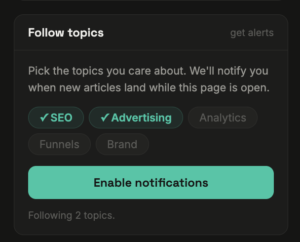
In the sidebar, the Follow topics panel lets you choose the categories you care about most. Once you’ve picked them, tap Enable notifications and allow the browser prompt. From then on, when fresh articles land in your chosen topics, you’ll get a small desktop notification.
Two important details:
- These alerts only fire while the Marketing Intelligence page is open in a tab. They’re for people who keep it open during the workday.
- For alerts when the page is closed, use the email digest below instead – it reaches you anywhere.
11. The sidebar panels, one by one
The right column is a set of at-a-glance panels:
- Trending this week – the words appearing most often in this week’s headlines, ranked with little bars. Tap any word to search the feed for it. A quick read on what the whole industry is talking about.
- Most clicked – the articles readers are opening most right now, so you can see what’s genuinely resonating.
- Weekly poll – a one-question poll of marketers. Vote and you immediately see how everyone else answered. It resets every Monday.
- 2026 Benchmarks – quick reference numbers you’ll actually use in meetings: average Google CPC, top-position click-through rate, email open rates, average ROAS, and more.
- Google Trends – trending marketing-related searches. Tap one to search the feed for coverage of it.
- Weekly Recaps – an archive with one summary page per week: the volume of news, the leading topics, the busiest publishers and the headlines worth your time. Great for catching up after time off.
12. The weekly email digest
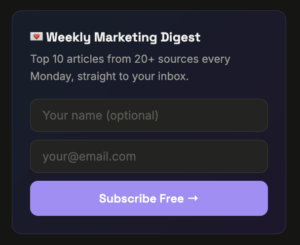
At the bottom of the sidebar is the Weekly Marketing Digest signup. Enter your email and hit Subscribe, and every Monday you’ll get the top stories from across all the sources in one email. This is the best option if you don’t want to visit daily but still want to stay current – and it reaches you even when the page is closed.
A simple daily routine
To get real value from the tool without it becoming another time sink, try this:
- Open it once each morning. Glance at the ticker and the “New since last visit” count.
- Switch Sort to Priority (score) if you’re short on time; leave it on Latest if you want everything.
- Filter to the one or two categories that matter to your role.
- Save anything worth a deeper read, react to the genuinely useful pieces, and move on.
- Check the sidebar’s Trending this week once a week to spot bigger shifts.
Five minutes a day and you’ll rarely be caught off guard by a marketing change again.